You launched a second Page last month. You go to add it to Mentbot, click Add or remove pages, click through Facebook’s screens, land back on the Pages screen — and it’s still just the one Page you started with. Try again, same result.
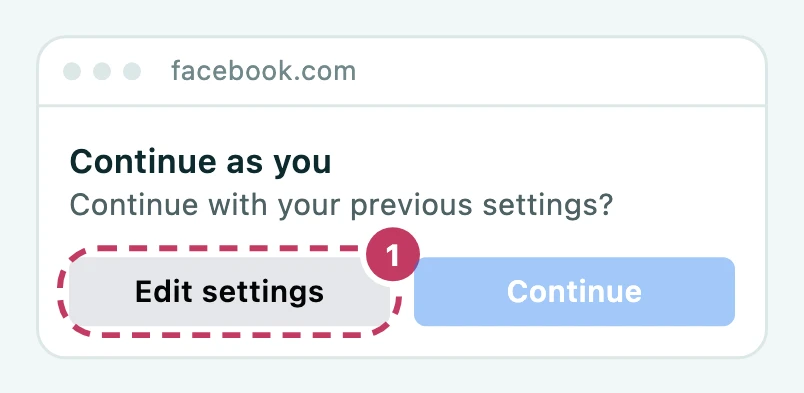
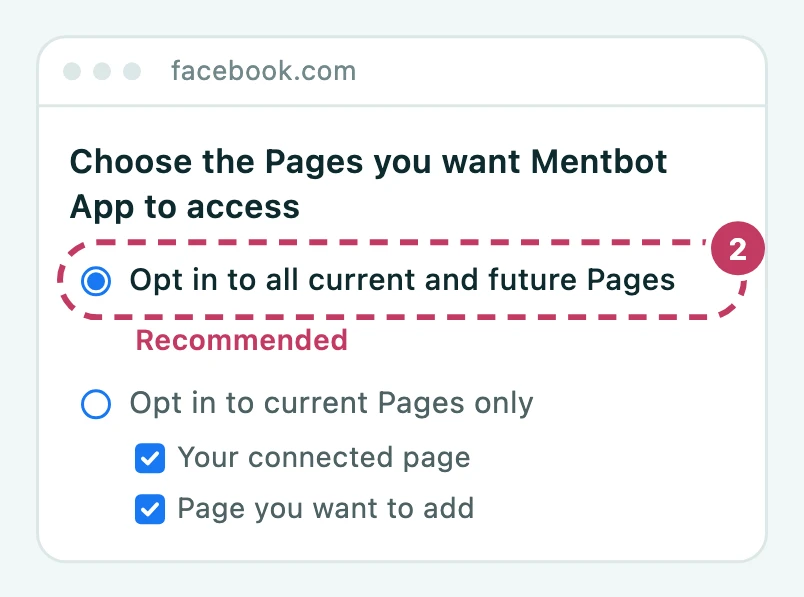
Nothing is broken. Once you’ve connected before, Facebook shows a shortcut screen that reuses your original page selection unless you choose to change it. Here’s the exact path around it.
Start in Mentbot. Go to Dashboard → Overview and click Connect page (top right), or open the Pages screen and click Add or remove pages. If you’ve connected before, Mentbot first shows a short guide, One extra step on Facebook, with the same three steps as below. Click Go to Facebook.
Then, on Facebook:
Mentbot has no limit on the number of Pages per plan — connect as many as you run.
The Page I want isn’t in Facebook’s list. You need full control (admin access) of that Page on Facebook to connect it. If the Page sits inside a Business Portfolio you’re not a member of, ask whoever manages the portfolio to add you first. How to check, and what to ask the admin for: your profile doesn’t have full control.
I did all of this and the Page still isn’t there. Go around through Facebook directly: on Facebook, open Settings & privacy → Settings → Business integrations → Mentbot App → View and edit, tick the Page, and save. Then come back to Mentbot and click Add or remove pages again so it re-syncs. The same path with screenshots: the Page wasn’t shared with Mentbot App.
Removing a page. Same flow, in reverse — click Edit settings and untick the Page. If nobody else has connected that Page, its Rules and comment history are deleted with it (remove a Page). If you just want to pause a Page without disconnecting it, turn off its Auto replies switch on Mentbot’s Pages screen instead; it keeps the connection and the Page’s Rules but stops replying.
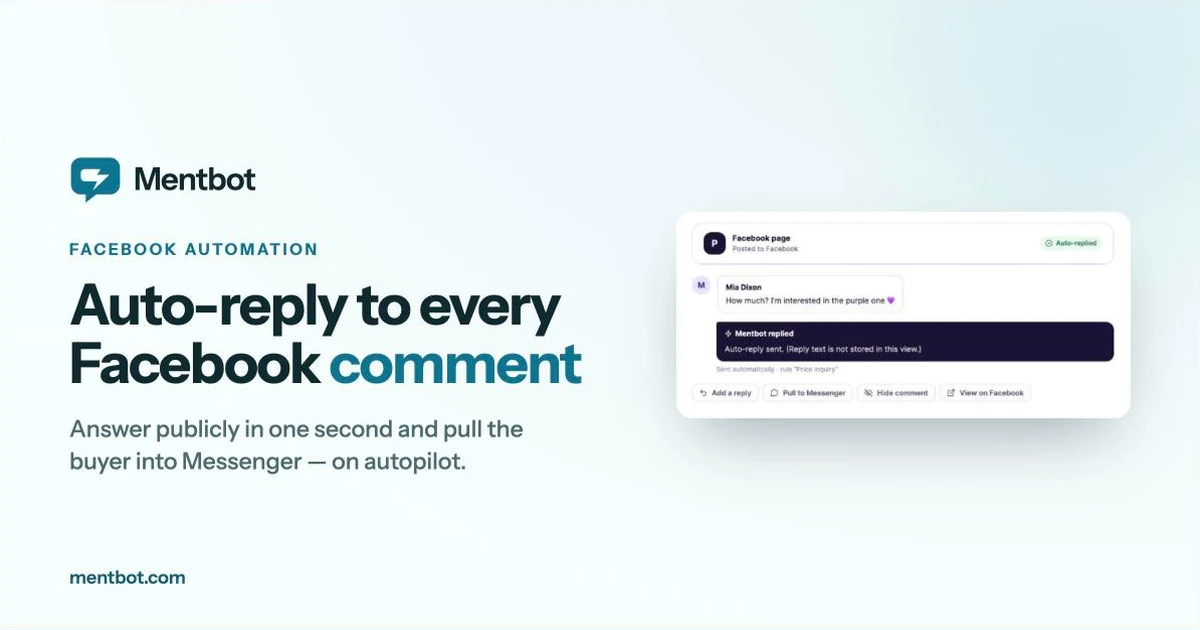
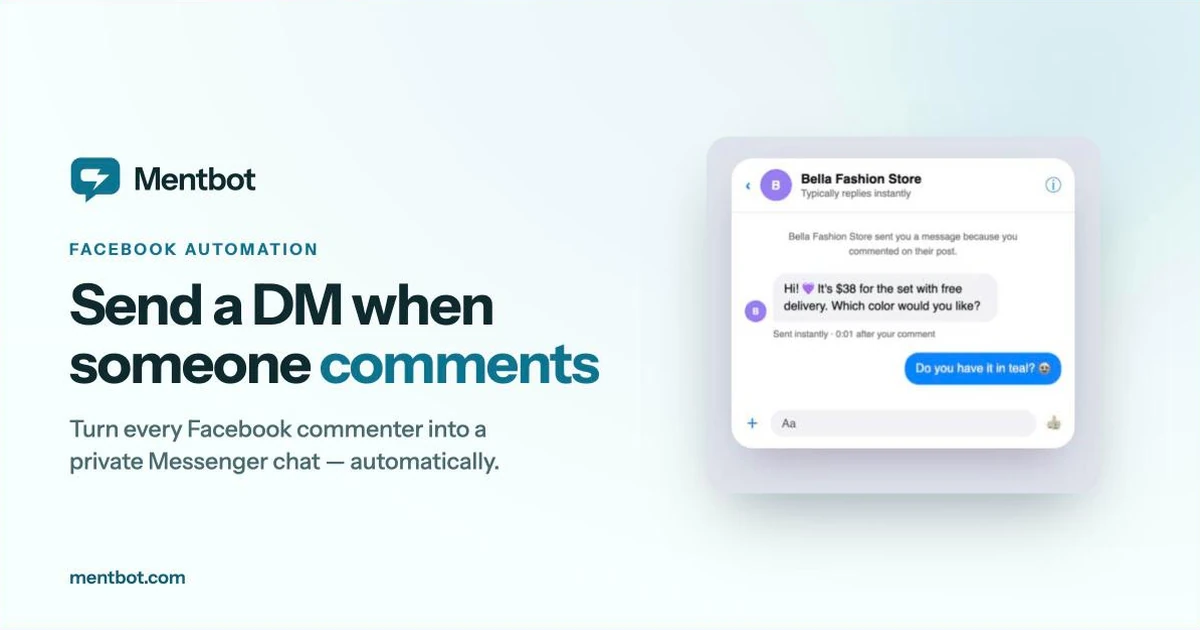
Once a Page is connected, set up your first auto-reply rule or configure comment-to-Messenger handoffs so new Pages start working the moment they sync. A new Facebook Page starts with a starter Default reply, so reword it before the first comment arrives (the Default reply). Every plan, from $9/month, covers unlimited Pages — pricing scales with daily comment volume, not with how many Pages you run.