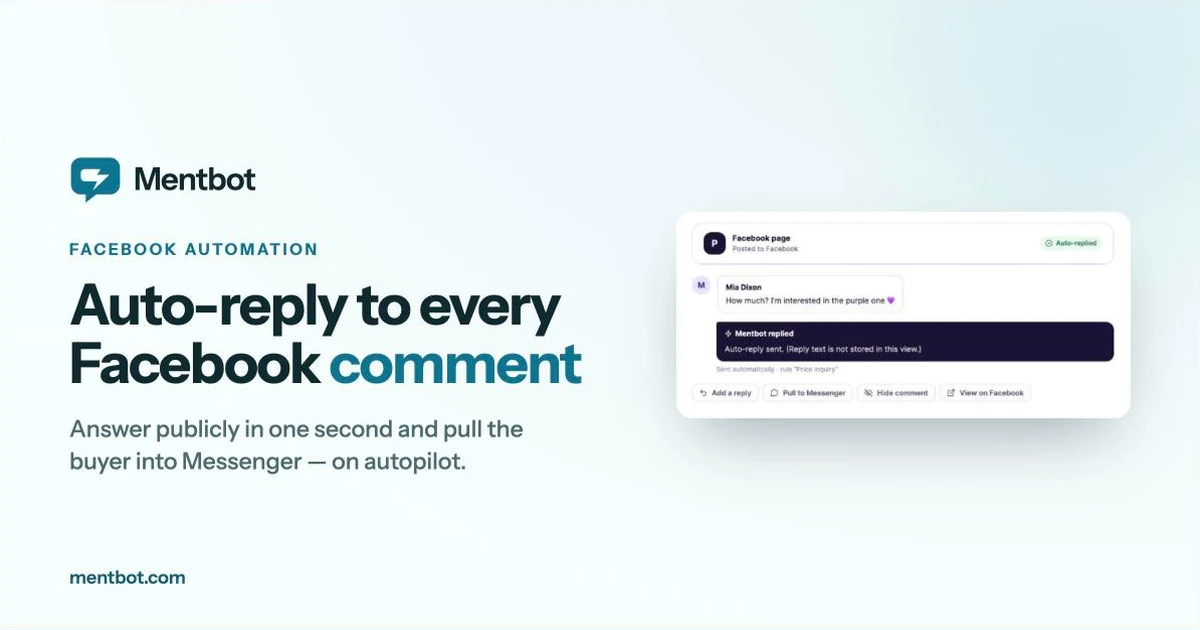
Your live sale ended an hour ago. The post has 212 comments saying “mine” and “price?”, and not one of them has a reply from your Page. The bot was set up last week. It worked on Tuesday.
When your Facebook auto-reply stops working, the answer is almost always written down already. Mentbot records a reason for every comment it doesn’t answer, and each reason points at one setting. This guide covers the seven reasons it shows, what causes each one, and where to fix it.
Open Comments in the Mentbot dashboard and click any comment marked Skipped. The Comment details panel shows the reason, using the same labels as the headings below.
For the bigger picture, the Dashboard has a Why didn’t Mentbot reply? breakdown with a See these comments link for each reason, and each Page’s Reply overview has Show skip reasons. Look at the reason first. Changing rules before you know it is how a working rule gets broken.
The first three reasons are switches on the Page or the account, and they’re the three most common across Mentbot (our own comment logs, 24 September to 7 October 2026). Check them first.
What happened. The Page’s Auto replies switch is off, so Mentbot reads its comments and answers none of them. It’s often switched off on purpose, to pause during a test or a busy day, and then forgotten. A Page in Mentbot is shared by everyone who manages it, so one teammate switching it off stops it for all of you.
The fix. Open Pages and turn the Auto replies switch back on in that Page’s row. The same switch sits at the top of the Page’s own settings.
The comments you missed. Comments that arrived while replies were off stay skipped. To answer them, tick them in Comments and choose Run my rules: each one gets the reply its rule would have sent. Those replies count toward your daily limit, and Facebook only allows a private Messenger reply within 7 days of the comment.
What happened. Your plan’s daily reply limit is used up. Each plan answers up to a set number of comments a day: Basic 100, Pro 1,000, Premium 3,000, Business 5,000. The 14-day trial runs on Pro. Once the limit is reached, every new comment is skipped until it resets at 23:59 Bangkok time (16:59 UTC).
Only comments Mentbot acts on count. Skipped comments don’t, but Bulk Reply runs draw from the same limit, so a big catch-up run can use up a day on its own.
The fix. Wait for the reset, or move up a plan from Plans. The higher limit applies straight away, with no wait for the reset. On a trial, you keep the days you have left and pay when the trial ends; you’ll need to add a card. On a paid plan, nothing is charged that day and the difference goes on your next invoice. Compare plans by daily volume. Every feature is on every plan.
What happened. The Page is connected, but it has no rules. Connecting a Page doesn’t make Mentbot reply. A rule does. In Pages, a Page like this carries a No rules yet badge. Deleting a Page’s last rule puts it back in this state.
The fix. Click Set up rules on that Page’s row (or open the Page, go to Rules and click Add rule). Choose a trigger, write the public reply and the Messenger message, and click Save settings. If you’re not sure what to write yet, start with a rule set to Every comment and a short public reply; you can add keyword rules later. Our guide to setting up Facebook comment auto-replies walks through a first rule end to end.
What happened. The rule only replies to comments containing certain words, under Only reply to comments containing these words, and this comment had none of them.
How Mentbot matches, so you can predict it:
The fix. Read the skipped comments in Comments and add the words buyers actually typed as keywords. Short forms matter: “pm”, “hm”, “interested”. If you’d rather no comment goes unanswered, add a second rule set to Every comment. It shows as Default reply and only runs when no other rule matches, because the most specific rule always wins: a rule on chosen posts beats a keyword or hashtag rule, which beats an every-comment rule.
Two things that look like this reason but aren’t:
What happened. The rule is set to Chosen posts, and the comment is under a post that isn’t on its list. This usually happens when you publish a new post and the rule still points at last week’s.
If the comments are on an ad, check which post the ad runs on. An ad built from scratch in Ads Manager is usually its own post, with its own comments, separate from the one on your Page.
The fix. Open the rule and, under Only reply on these posts, tick the new post, or paste its link into Or paste a post link or ID. Then Save settings. If you post new products every day, a hashtag rule saves you this step: tag each post and the rule follows (next section).
What happened. The rule is set to Only reply on posts with this hashtag, and the post’s caption doesn’t carry that hashtag. The hashtag is checked on the post, not on the comment.
The match is exact, ignoring capitals. A rule on “sale” matches posts tagged #sale or #SALE, but not #sale2026 or #flashsale. Each rule takes one hashtag, typed without the #.
The fix. Edit the post’s caption to include the exact hashtag, or change the rule to the hashtag you actually use. If you added the hashtag after posting, give Mentbot up to five minutes to pick up the new caption. And if what you want is for commenters to type a hashtag, that’s a keyword: add “#sale” under Only reply to comments containing these words instead.
What happened. The rule has Reply once per person (per post) switched on, and this person already got an answer from it under this post. Only replies that reached them count: if Facebook blocked the earlier one, Mentbot doesn’t treat the person as answered.
Reply once is right for giveaways and “comment interested” posts, where people comment again and again. It’s wrong for live selling, where one buyer comments “mine” on three different items and expects three answers.
The fix. Open the rule, switch off Reply once per person (per post) and click Save settings. New comments get answered from then on. For the ones already skipped, tick them in Comments and choose Run my rules. Our mine-on-live reply template shows a live-selling rule set up this way.
These are rarer, and most aren’t a setting you got wrong:
Why does my auto-reply work on some posts but not others? The rule is scoped. Either it runs on Chosen posts and the quiet post isn’t on the list (reason 5), or it needs a hashtag that post’s caption doesn’t have (reason 6).
Why did the bot reply all morning and then stop? Check the daily limit first (reason 2): look at the reason on a skipped comment from the afternoon. If it says “Daily quota reached”, replies resume at the reset or as soon as you move up a plan.
Why did someone get one reply and nothing after? Reply once per person is on for that rule (reason 7). That’s intended for giveaways. Turn it off for posts where one buyer orders more than once.
Does Mentbot reply to comments that are just a sticker or a photo? Only through a rule set to Every comment. A keyword rule needs words to match, so it skips them on purpose.
If the reason on the comment doesn’t match anything above, contact us and include the comment’s reference IDs from Comment details, so we can find it without guessing.
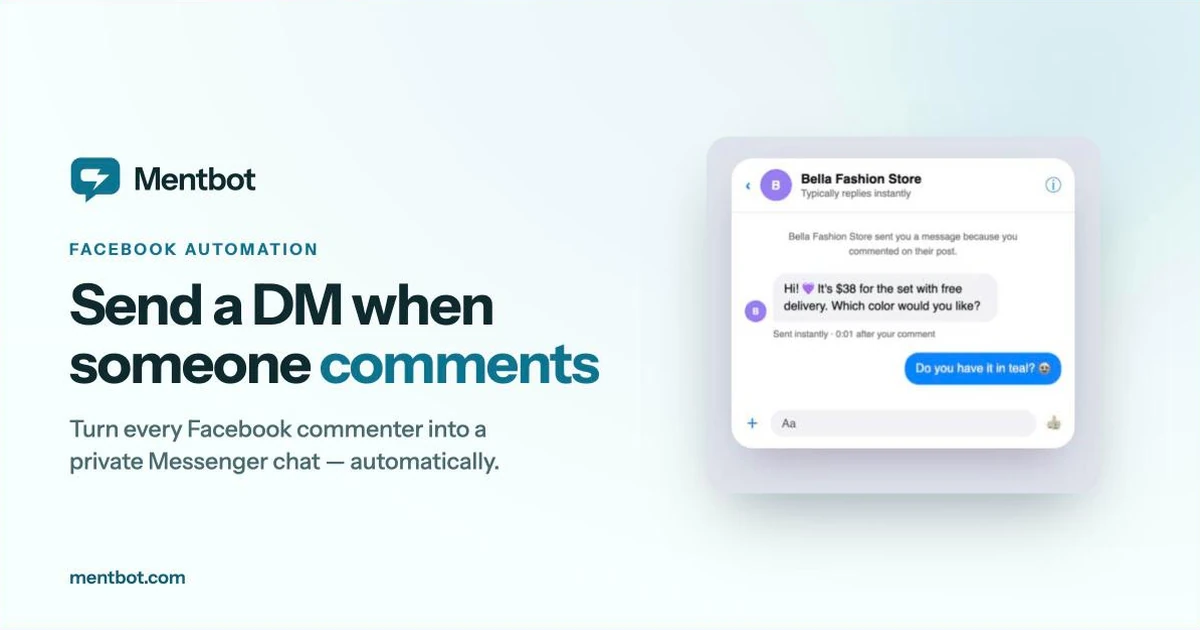
New to Mentbot? Our guide to sending a DM when someone comments covers what to put in the private message, and you can start a 14-day free trial with no card required.