
Connect Facebook or Instagram and choose your Pages
On this page
In Pages, press Add or remove pages and go to Facebook. There, press Edit settings, tick every Page you want Mentbot on, including the ones already connected, and keep every permission on.
Before you start
- Log in to Facebook with a profile that has full control of each Page. A Page your profile can’t manage won’t be in Facebook’s list: see Facebook returned no Pages.
- For Instagram, the account has to be a professional account linked to one of those Pages. See Connect an Instagram account.
- Use a computer if you can. On an Android phone the Facebook app can take over the login and leave Mentbot waiting.
Connect your Pages
Open Pages.
Press Add or remove pages.
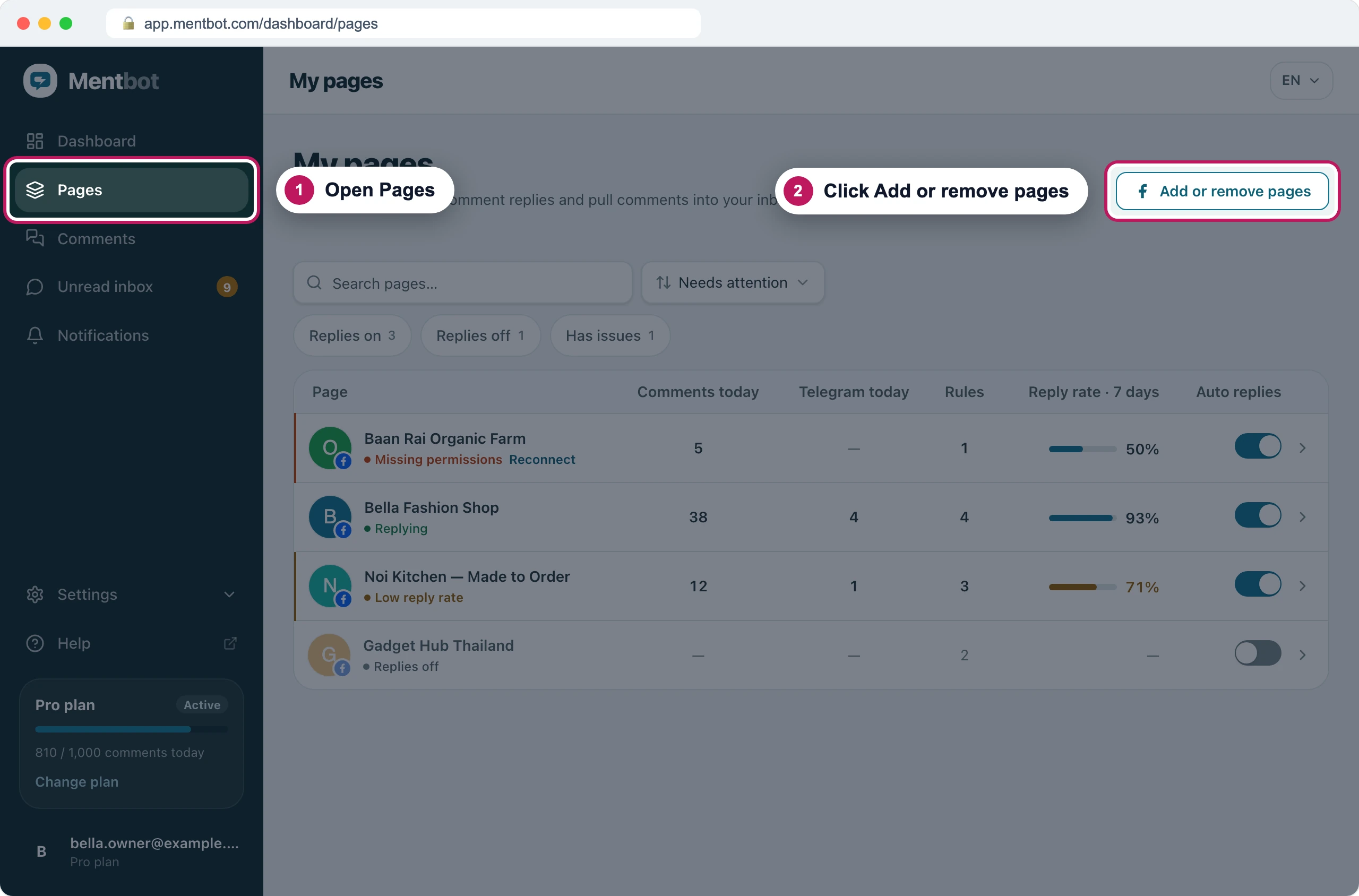
The same button adds your first Page and every Page after it. Mentbot shows what to expect on Facebook. Press Go to Facebook.
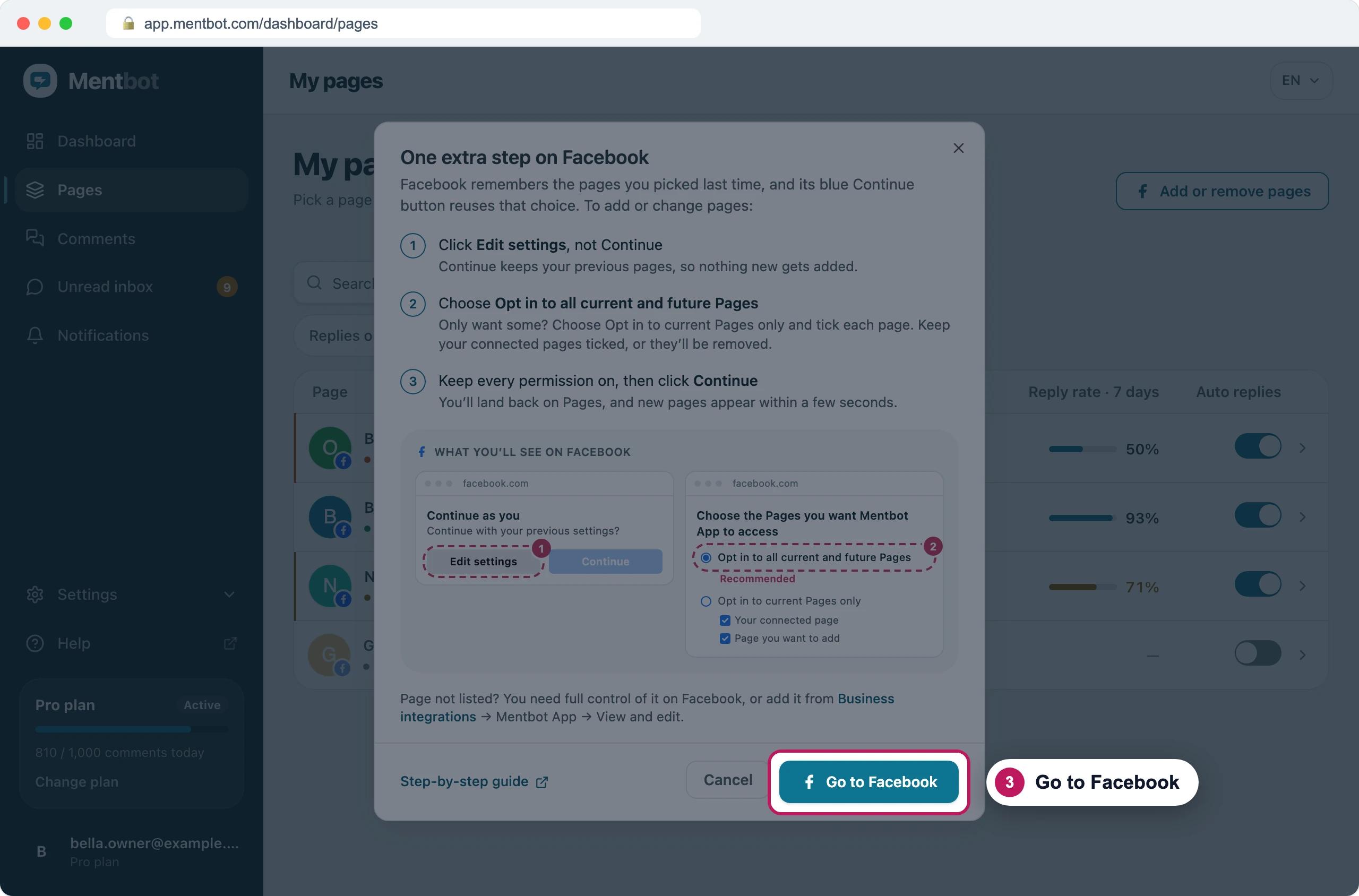
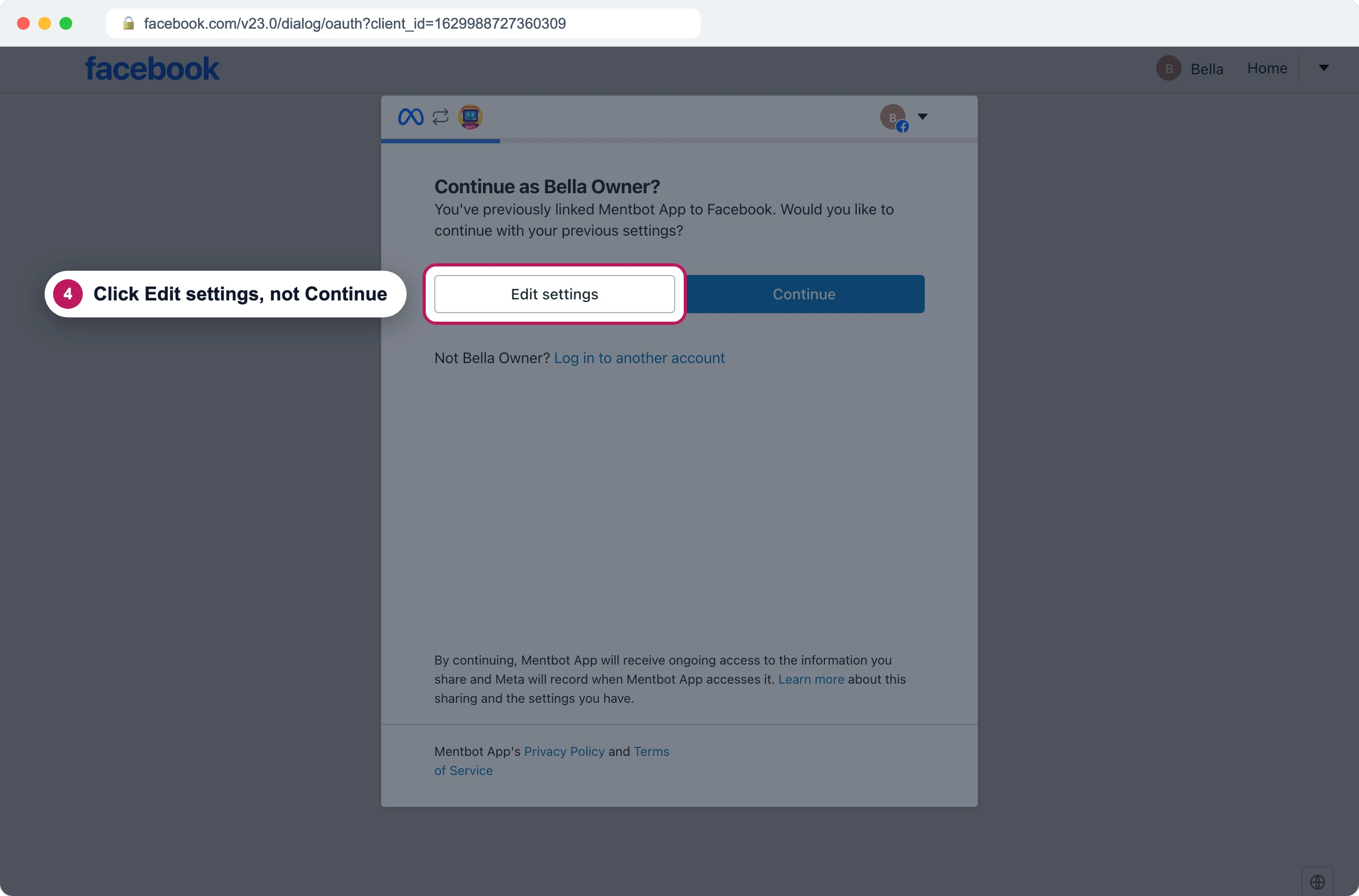
Mentbot's reminder of the three choices to make on Facebook. If Facebook asks Continue as …?, press Edit settings, not Continue. Continue reuses the Pages you picked last time, so nothing new gets added.
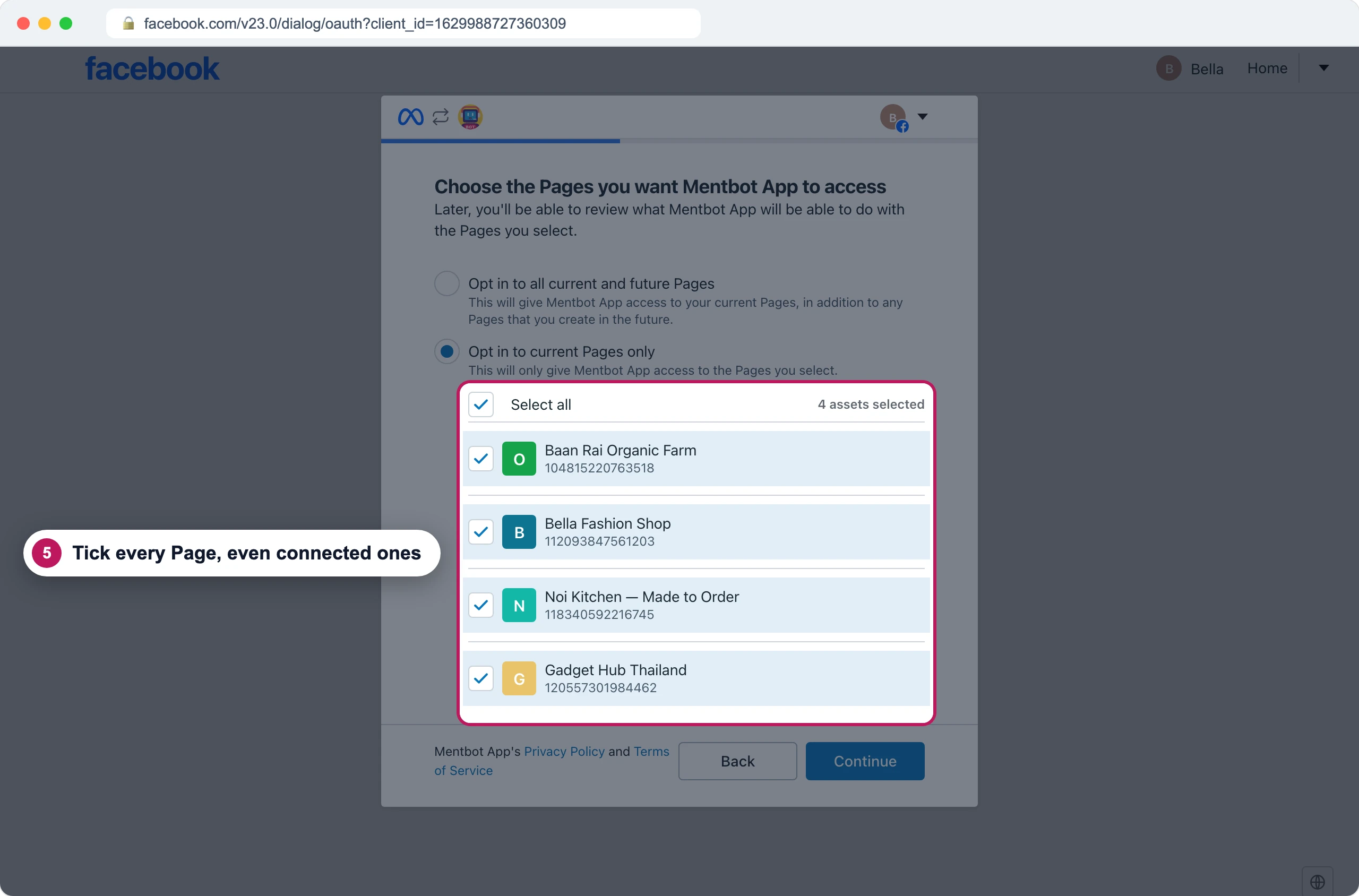
Recreated Facebook screen Choose Opt in to all current and future Pages. To pick Pages yourself, choose Opt in to current Pages only and tick each one you want, including the ones already connected. Then press Continue.
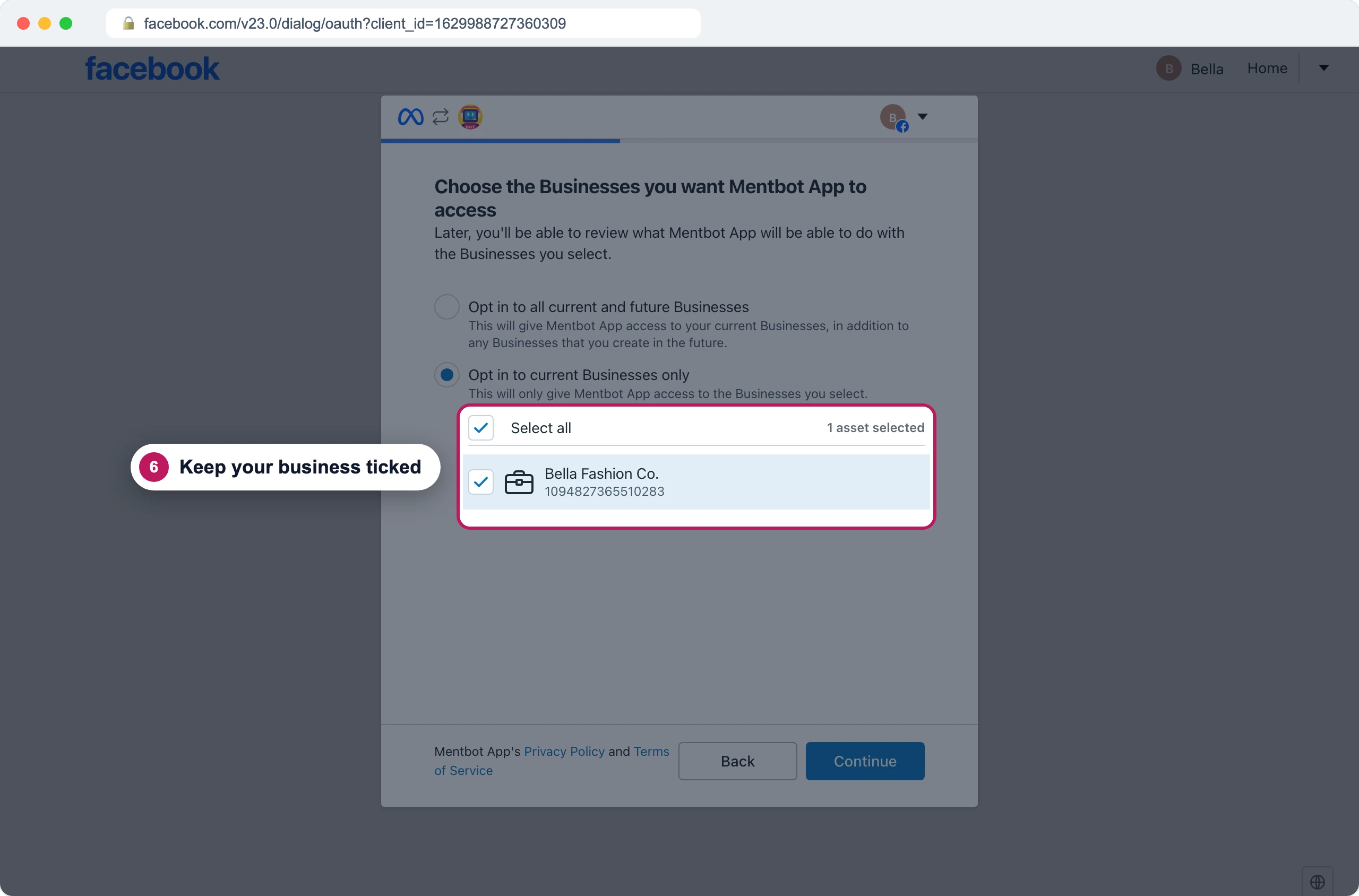
Recreated Facebook screen If Facebook asks which Businesses to share, keep the business that owns your Pages ticked and press Continue. Pages owned by a business portfolio need it.
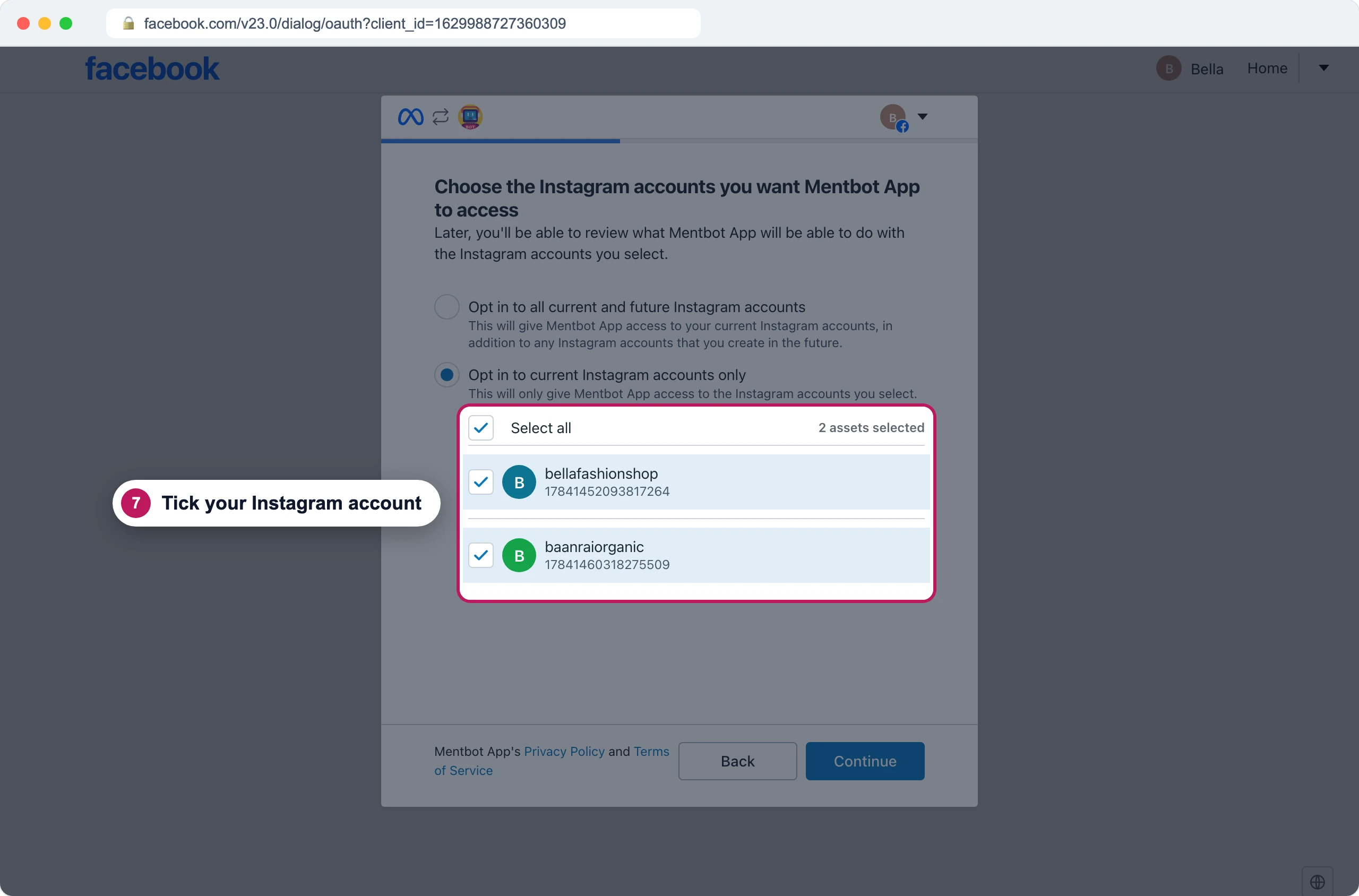
Recreated Facebook screen If Facebook asks which Instagram accounts to share, tick the ones you want Mentbot on and press Continue.
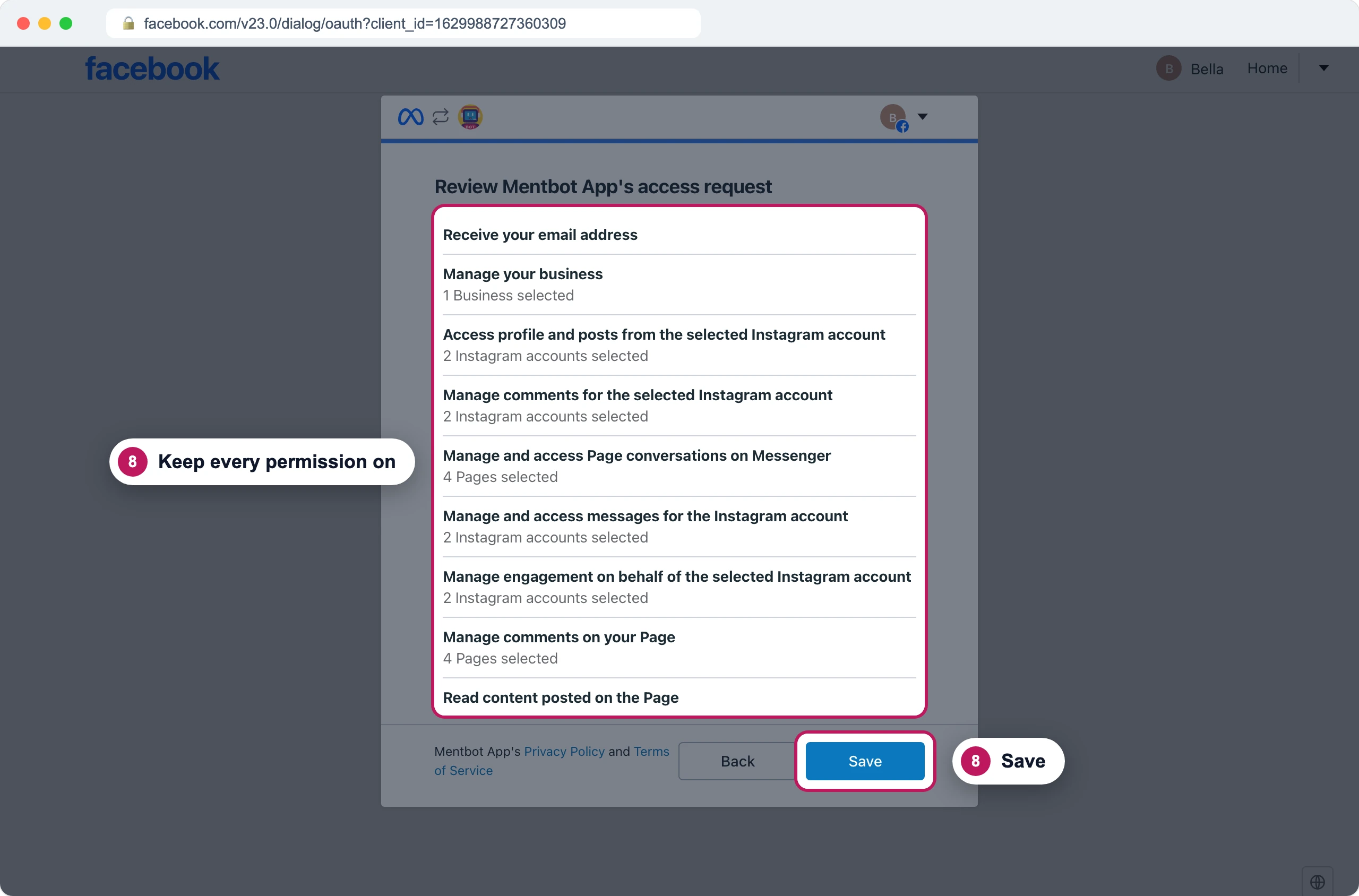
Recreated Facebook screen On Review Mentbot App’s access request, leave every permission on and press Save. Mentbot needs each one to read and answer comments.
Recreated Facebook screen Facebook sends you back to Pages, and your Pages appear within a few seconds.
Add another Page later
- In Pages, press Add or remove pages, then Go to Facebook.
- Press Edit settings.
- Choose Opt in to all current and future Pages, or tick the new Page and keep every connected Page ticked.
- Press Continue on each screen, then Save.
The new Page appears in Pages with its own Rules, starting from the starter Default reply.
Remove a Page
To stop Mentbot replying on a Page for a while, turn off its Auto replies instead. Its Rules stay as they are.
To remove it:
- In Pages, press Add or remove pages, then Go to Facebook.
- Press Edit settings and choose Opt in to current Pages only.
- Untick the Page you’re removing. Keep every other Page ticked.
- Press Continue on each screen, then Save.
The Page leaves your Pages list. Anyone else who manages it in Mentbot keeps it, with its Rules. If you were the only one, its Rules and comment history are deleted.
Connect an Instagram account
Mentbot reaches an Instagram account through the Facebook Page it’s linked to, so you connect both in the same Facebook window.
- Check that the Instagram account is a professional account linked to your Page. If it isn’t linked yet, see link your Instagram account to a Page.
- Follow Connect your Pages. Tick the linked Page on Facebook’s Pages screen, and the Instagram account on its Instagram screen.
- The Instagram account appears in Pages as its own row, named by its username.
- Open it and press Add rule. An Instagram account starts with no Rules, so it doesn’t reply until you add one: see Set up a Rule.
Removing the Page from Mentbot removes its Instagram account too.
If it still doesn’t work
A Page isn’t in Facebook’s list
Your Facebook profile needs full control of the Page, and a Page owned by a business portfolio needs that business ticked. See “Facebook returned no Pages” or a Page is missing.
Facebook didn’t show the Page list at all
Facebook reused your earlier choice. Go through Connect your Pages again and press Edit settings at step 4.
”Go to Facebook” stays on “Redirecting…”
The Facebook app or an ad blocker took over the login. See The Facebook login didn’t finish.
Still stuck? Use the chat in your dashboard, or email [email protected].