
Set up a Rule: keywords, hashtags, posts and the Default reply
On this page
A Rule tells Mentbot which comments to answer and what to reply. Each comment gets one reply, from the most specific Rule that matches it: a chosen post beats a keyword, and a keyword beats the Default reply.
Add a Rule
Open Pages, choose your Page, and press Add rule.
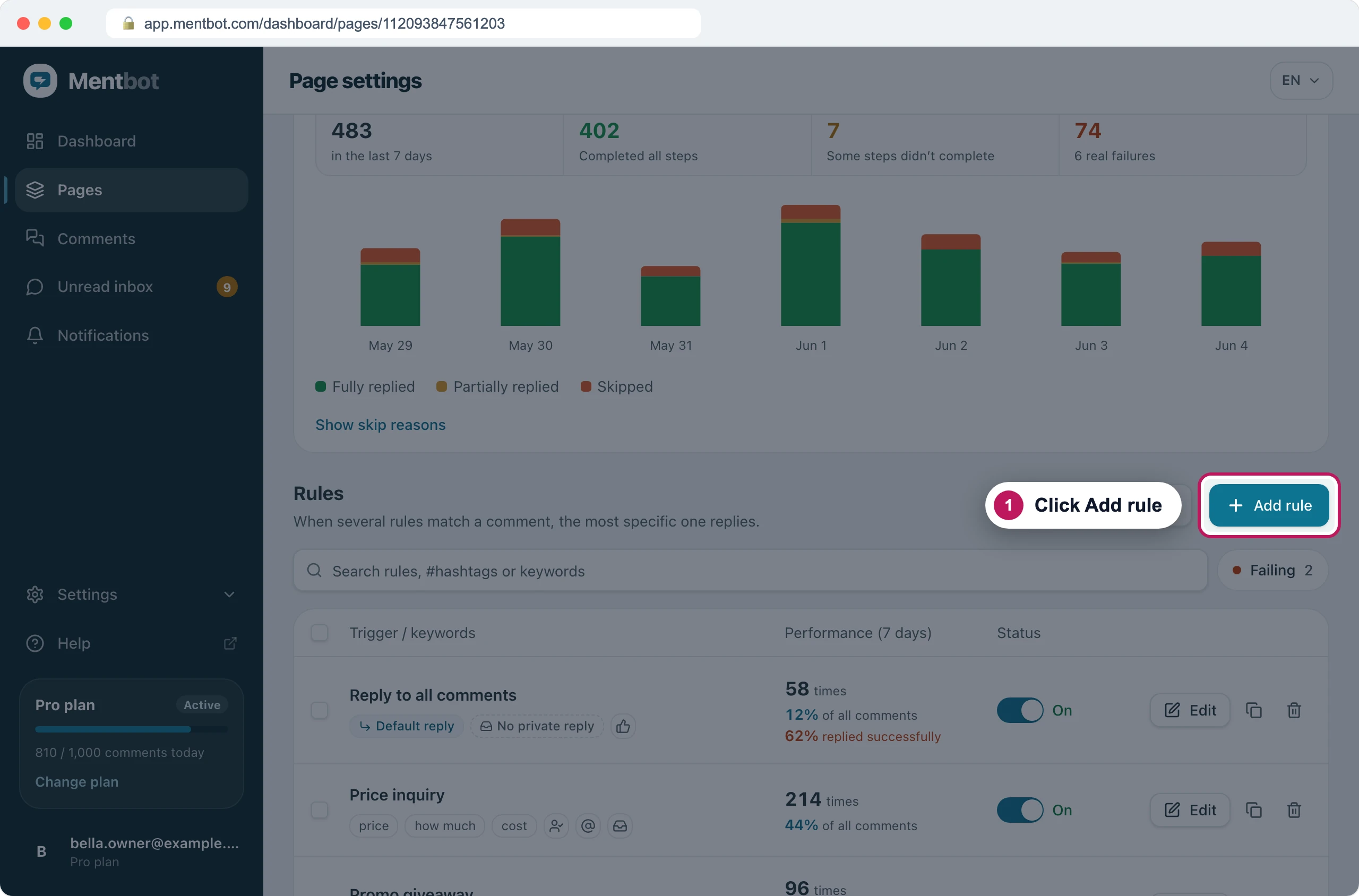
Each Page has its own Rules. Type a Rule name, then choose which comments the Rule answers: Every comment, Hashtag or keywords or Chosen posts.
For keywords, type a word under Only reply to comments containing these words and press Add. Add as many as you like. A comment needs to contain only one of them.
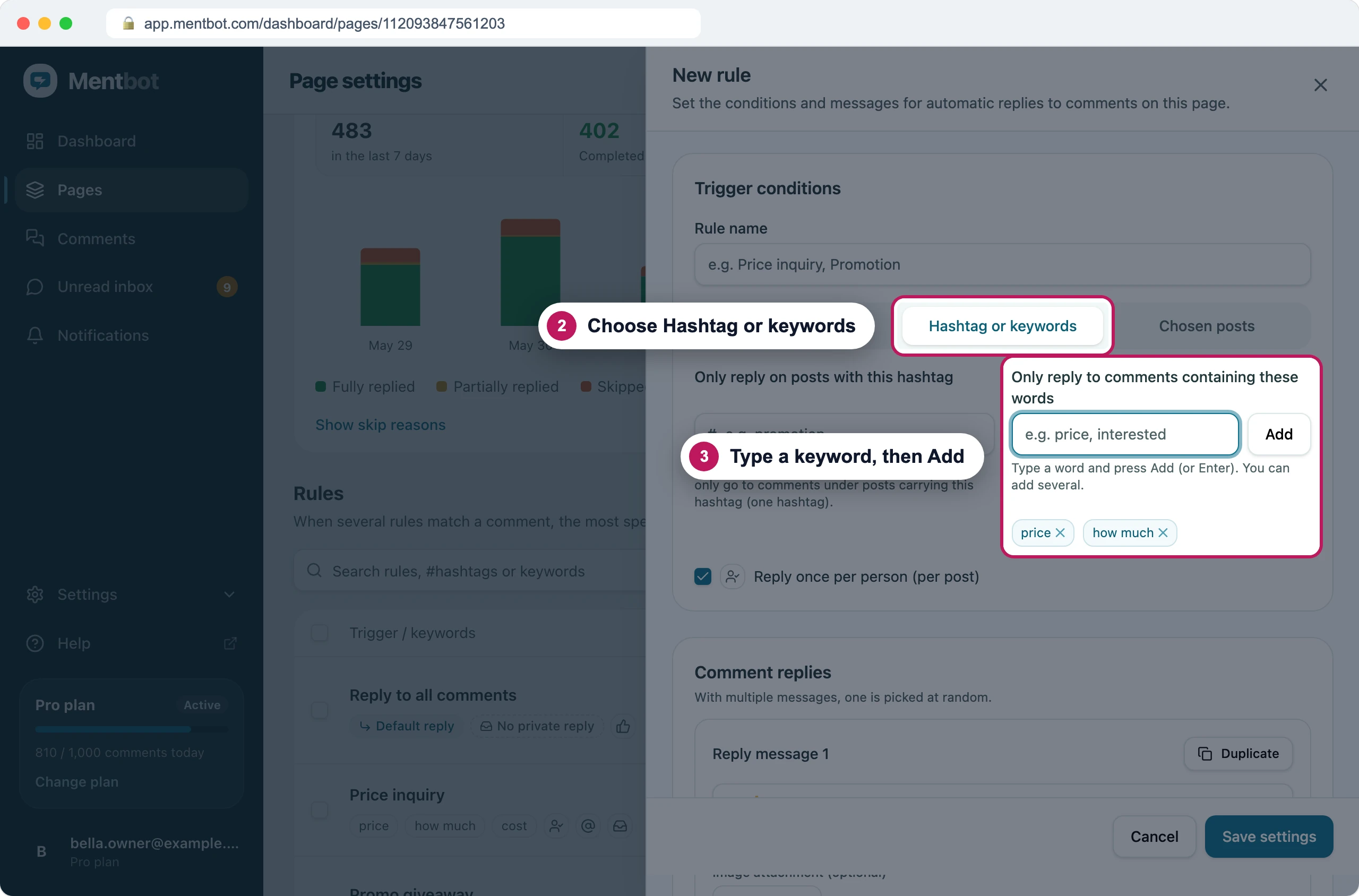
This Rule answers any comment that says price or how much. Under Comment replies, write the reply Mentbot posts under the comment.
Press + Add reply message and write two or three other versions. Mentbot picks one at random for each comment, so your Page doesn’t post the same text over and over.
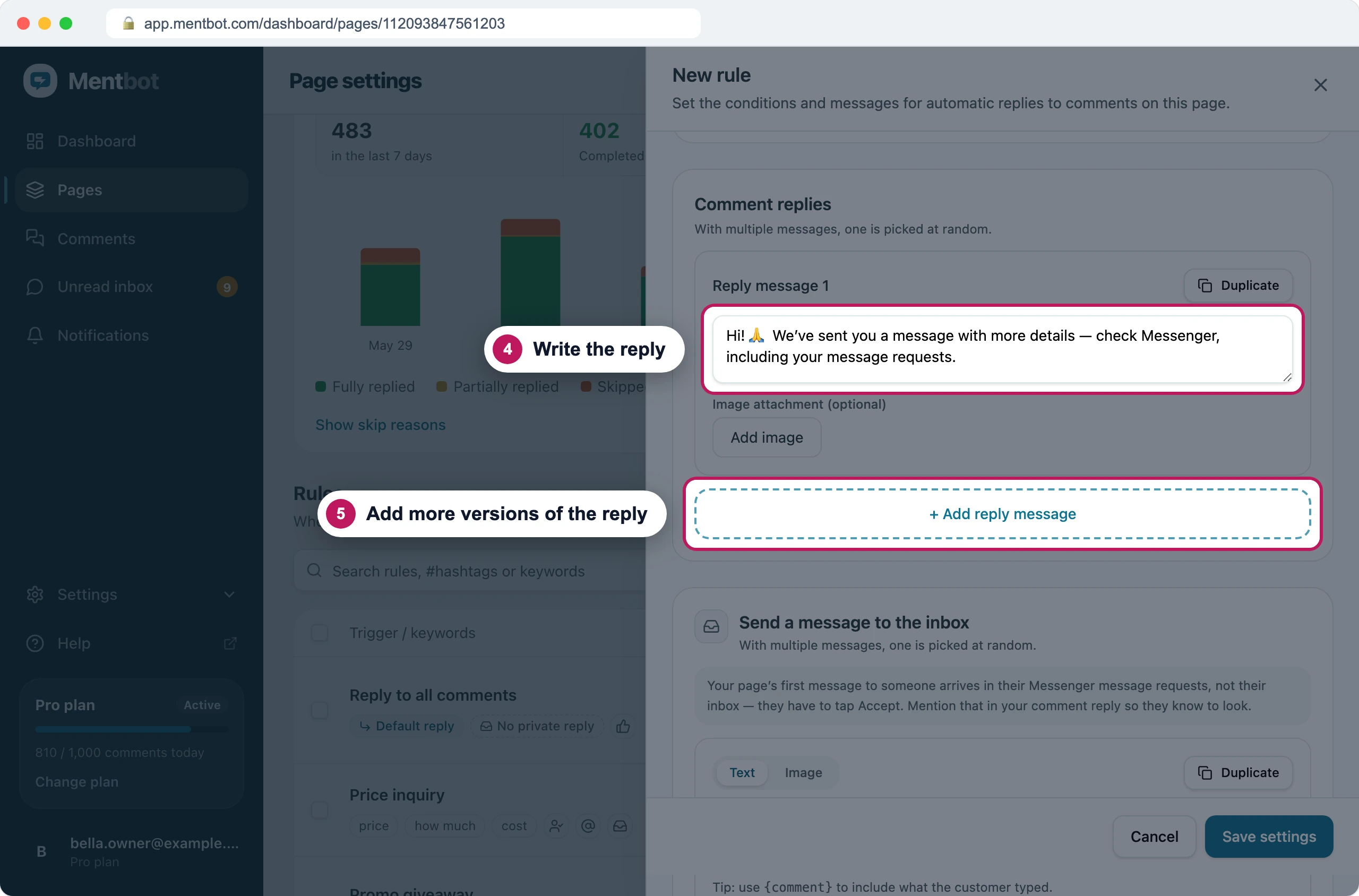
Each comment gets one of the versions, picked at random. To message each commenter in Messenger too, fill in Send a message to the inbox. See Send a private Messenger reply.
Press Save settings. The Rule starts replying straight away.
How Mentbot picks one Rule
Mentbot checks every Rule that’s on. When several match a comment, the most specific one replies:
- A Chosen posts Rule, with or without keywords.
- A Hashtag or keywords Rule. A hashtag and a keyword count the same.
- An Every comment Rule, the Default reply.
When two matching Rules are equally specific, the older one replies. Editing a Rule doesn’t make it newer, and a duplicate is always the newest. Sorting the list only changes how it’s shown, not which Rule wins.
The comment detail in Comments tells you when this happened: A more specific rule replied or An older rule with the same reach replied. To make a different Rule answer, make it more specific by choosing its posts or adding keywords, or turn the other Rule off.
How keywords match
- Capitals don’t matter: “Price” matches “price”.
- Full-width letters match normal ones, and accents are ignored: “SALE” matches “sale”, “preco” matches “preço”.
- A keyword matches inside longer words: “red” matches “reddish”. Pick words that don’t hide inside other words.
- Spaces count: “how much” matches only those two words with one space between them.
- A comment with no text, like a sticker or a photo, never matches a keyword. The Default reply still answers it.
You can’t exclude a word. Use a more specific keyword instead.
Reply on posts with a hashtag
The hashtag goes in your post, not in the comment. A hashtag Rule answers comments under every post that carries the tag, including posts you publish later.
- In the Rule, choose Hashtag or keywords.
- Under Only reply on posts with this hashtag, type the tag without the #. A Rule takes one hashtag.
- Add keywords too if the Rule should answer only some comments on those posts. Then a comment needs the hashtag on its post and one of the keywords.
- Press Save settings.
The whole tag has to match, in any capitals: “sale” doesn’t match a post tagged #sales. In the post, follow the tag with a space or a new line. Punctuation such as 。 or an emoji written straight after it becomes part of the tag.
Reply on chosen posts only
- In the Rule, choose Chosen posts.
- Tick posts in the list, or press Load more posts for older ones. You can also paste a post’s link under Or paste a post link or ID and press Add.
- Add keywords if the Rule should answer only some comments on those posts.
- Press Save settings.
A Rule takes up to 100 posts. Posts you publish later aren’t included, so use a hashtag for those.
The Default reply
A Rule set to Every comment is a Default reply. It answers every comment that no other Rule matched, and the list marks it Default reply. Facebook Pages start with one, named “Default reply (edit me)”: change its text so it sounds like you.
Only one Default reply answers. If you have two, the older one replies and the newer one shows Won’t reply. The exception: when the older one replies once per person, the newer one shows Repeat commenters only and answers people who comment again on the same post. To swap them, turn the older one off.
Reply once per person
With Reply once per person (per post) ticked, a Rule answers each person once on each post, however many times they comment. It’s ticked on new Rules. Their later comments on that post get no reply and no private message from that Rule, and usually show Already replied on this post. A different Rule can still answer them.
In the Rule, tick or untick Reply once per person (per post) under Trigger conditions, then press Save settings.
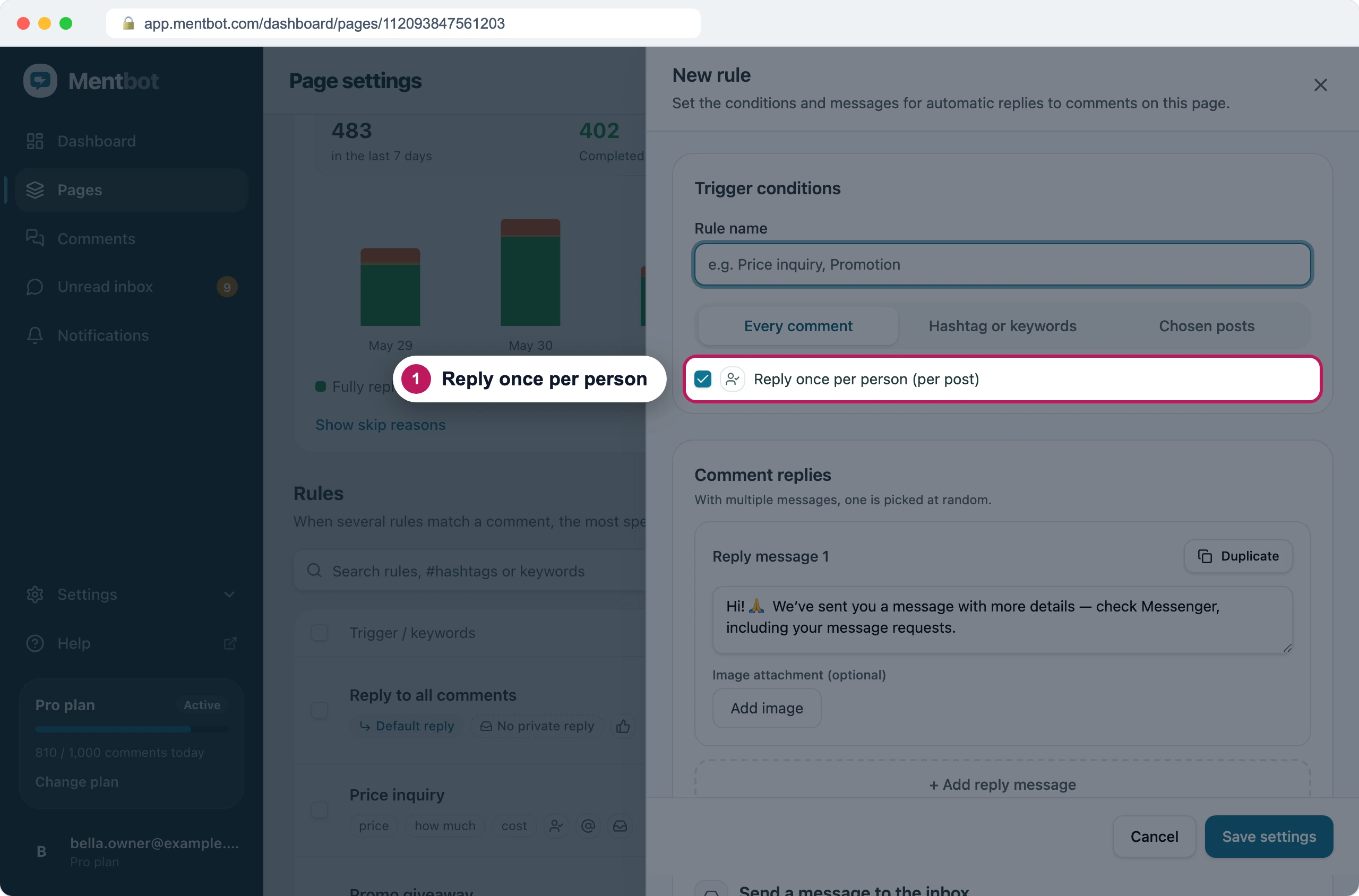
Ticked on new Rules.
Keep it ticked unless you want every comment answered. Replying to one person again and again is one of the patterns that gets a Page’s replies blocked: see Avoid getting your Page’s replies blocked.
Duplicate a Rule
- In the Rules list, press Duplicate next to the Rule. The copy has everything the original has, and its name ends in “(copy)”.
- Give the copy its own keywords, hashtag or posts.
- Press Save settings. The copy is on, and it’s the newest Rule, so the original replies first when both match equally.
To copy Rules to your other Pages, tick them in the list and press Duplicate selected rules.
On Instagram
Rules on an Instagram account connected through your Facebook Page work the same way, with these differences:
- A comment reply can’t carry an image. The Image attachment (optional) box says Not available on Instagram.
- Mentbot answers comments on the post, not replies inside a comment thread.
- To pick a post by hand, paste its media ID under Or paste a media ID.
- The hashtag is read from the post’s caption.
- There is no starter Default reply. Add an Every comment Rule yourself.
If it still doesn’t work
The wrong Rule replied
Open the comment in Comments to see which Rule replied and why. Then make the Rule you wanted more specific, or turn the other one off. See How Mentbot picks one Rule.
My keyword Rule didn’t reply
Check that Auto replies is On for the Page, that the Rule is On, and that the comment contains the keyword as you typed it, spaces included. If it still says Text matched no keywords, see Why didn’t Mentbot reply?.
Facebook refuses replies that contain my link
Facebook refuses public replies that link to some websites. Move the link into the private message: see links in public replies.
Still stuck? Use the chat in your dashboard, or email [email protected].