
Get Telegram alerts for unanswered messages
Mentbot can post to a Telegram group when a customer’s message to your Facebook Page has waited longer than a time you pick. Setup takes three steps in Mentbot: add the bot’s Chat ID, choose the Pages, and send a test. Adding the bot in Telegram alone doesn’t turn alerts on.
Set up Telegram alerts
In Telegram, create a group for your team, or use your own chat with the bot. On Notifications, Add the bot to a group and Message the bot open the Mentbot bot in Telegram.
Add the bot to the group. It replies with a Chat ID. Copy that number, including the minus sign if there is one.
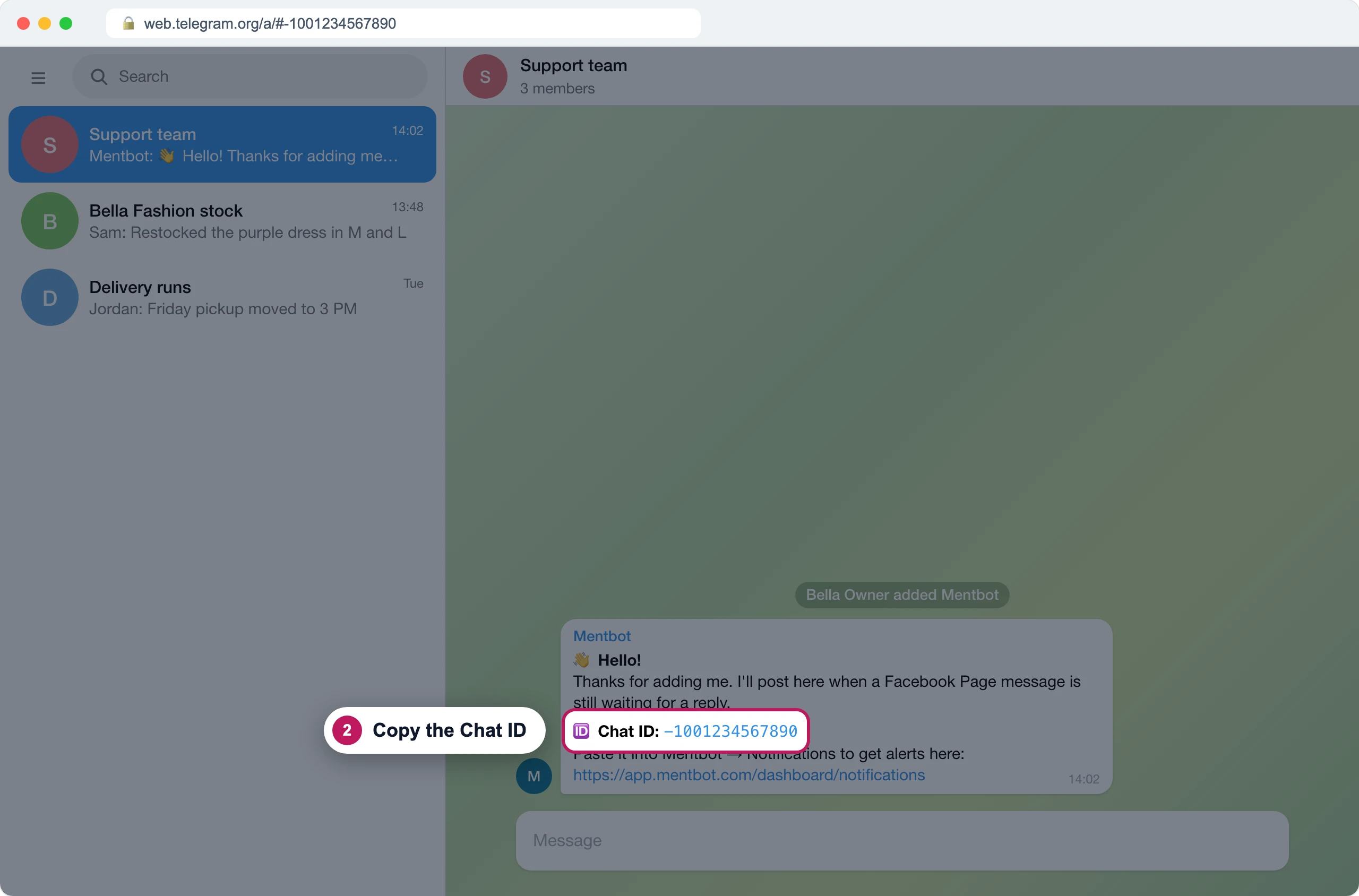
Recreated Telegram screen. The bot posts this when it joins a group. Back on Notifications, paste the Chat ID into the box and press Add Chat ID. The group appears under Telegram groups, and the bot posts a test alert in it.
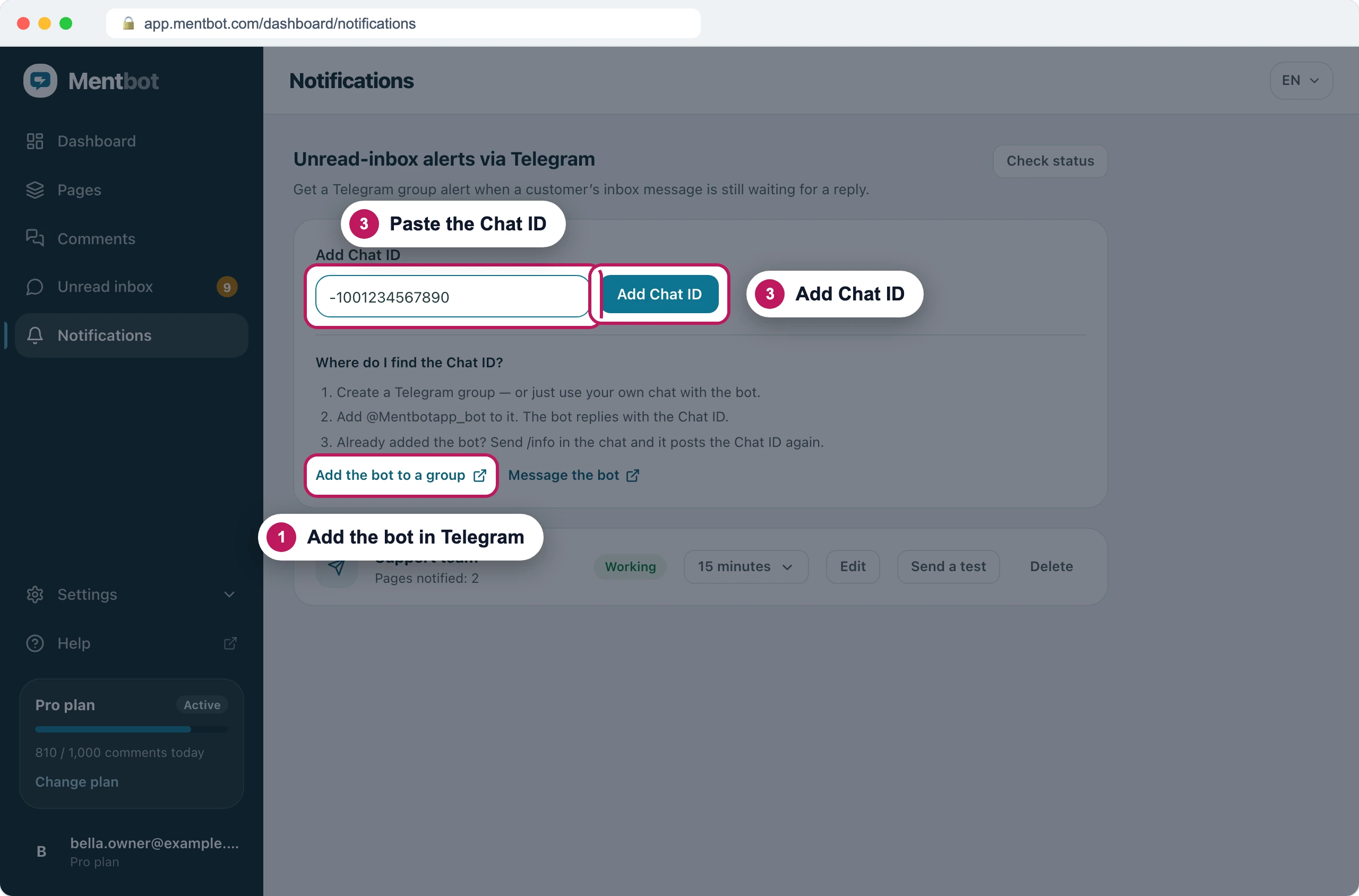
The Chat ID the bot sent goes in this box. On the group’s row, press Edit, tick the Pages whose messages should alert this group, then press Save. A new group follows no Pages: until you do this step, the row says Pages notified: 0 and no alert is sent.
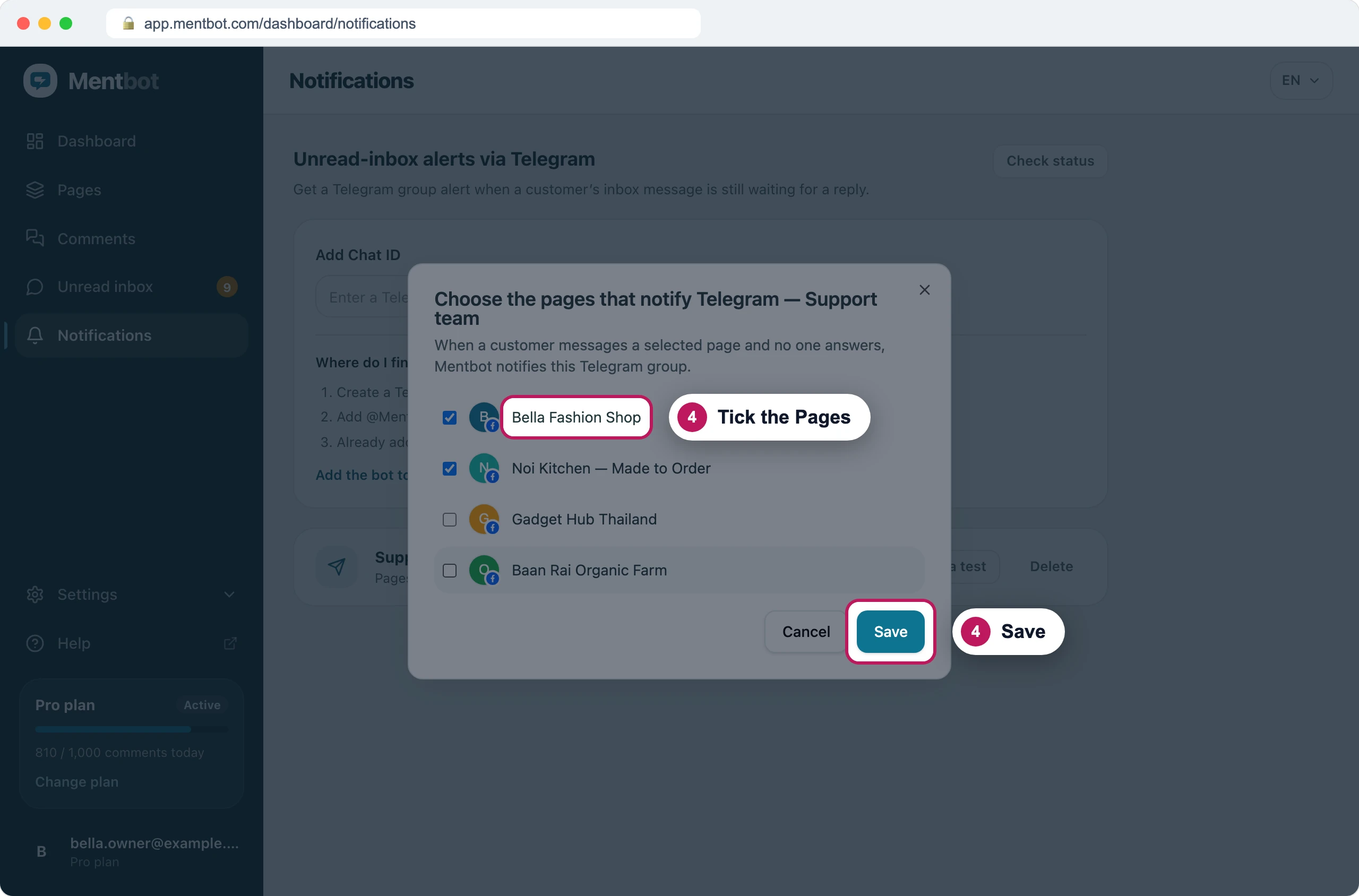
Only the ticked Pages alert this group. Pick how long a message waits before the alert from the minutes menu on the same row: 5, 15, 30, 60, 120 or 240 minutes. It saves as soon as you pick.
Press Send a test. A test alert in the group means Mentbot can post there.
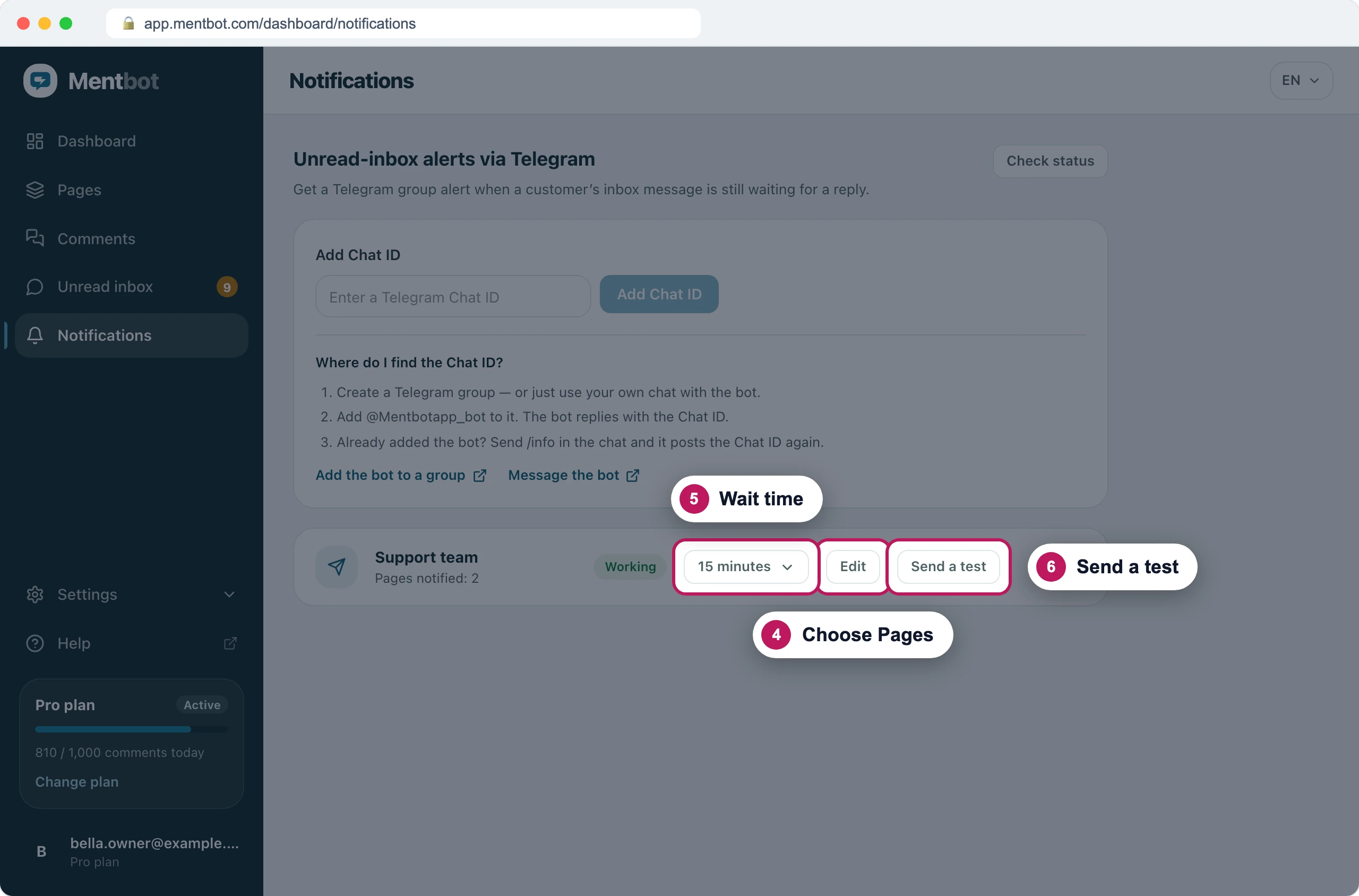
One row per Telegram group: its Pages, its wait time and a test.
Already added the bot and lost the Chat ID? Send /info in the Telegram chat and the bot posts it again.
When an alert is sent
A Facebook message counts as waiting while both of these are true:
- The customer sent the latest message in the chat.
- Nobody has opened the chat in your Page’s inbox on Facebook or in Meta Business Suite.
When a waiting message passes the time you picked, Mentbot posts one alert listing up to 5 of the newest waiting messages. Tap a message in the alert to open that chat in your Facebook inbox. Each message alerts once. A customer who sends several messages a few seconds apart is timed from their latest one.
The same rule decides what Unread inbox shows. When a Telegram group follows a Page, Unread inbox shows that Page’s messages only once they’ve waited as long as the group’s time.
Test it
- Check that the group’s row says Working and that Pages notified counts at least one Page.
- From your personal Facebook profile, not as the Page, send a message to one of those Pages.
- Don’t open that chat on Facebook. Opening it marks it read, and it stops counting as waiting.
- Wait for the time you picked. The alert arrives in the Telegram group shortly after.
If it still doesn’t work
Nothing arrives in Telegram at all
- The Chat ID was never added. If Telegram groups is empty on Notifications, do Set up Telegram alerts from step 3.
- The group follows no Pages. Press Edit on the row and tick the Pages, as in step 4.
- The chat was opened on Facebook before the time passed. Someone reading it on Facebook counts as handling it, even without a reply.
- The message went to your Instagram account. Telegram alerts and Unread inbox cover Facebook Pages only.
Adding the Chat ID fails
- The bot is not a member of this group or cannot access the chat. Add the bot to the group first, then press Add Chat ID again.
- Invalid Chat ID, or the bot cannot access this chat. Copy the Chat ID exactly as the bot sent it. A group’s Chat ID usually starts with a minus sign. Send
/infoin the group to get it again. - This Chat ID has already been added. The group is already under Telegram groups. Use its row instead of adding it twice.
The group says Not working
Mentbot couldn’t post to the group. Someone removed the bot, or the group stopped members from sending messages. Add the bot back or let members post, then press Check status. The row turns Working again.
A message I didn’t answer isn’t in Unread inbox
It follows the same rule as the alerts. See A message I haven’t answered isn’t in Unread inbox.
Still stuck? Use the chat in your dashboard, or email [email protected].